
Interface Overview
MathArt's interface balances minimalism with powerful controls. The workspace is divided into four main areas to help you create efficiently.
1. Main View (Overview)
[Insert: a full-screen screenshot with numbered callouts 1/2/3/4]
① Scene List: Your library of scenes and presets. Different scene types display different icons.
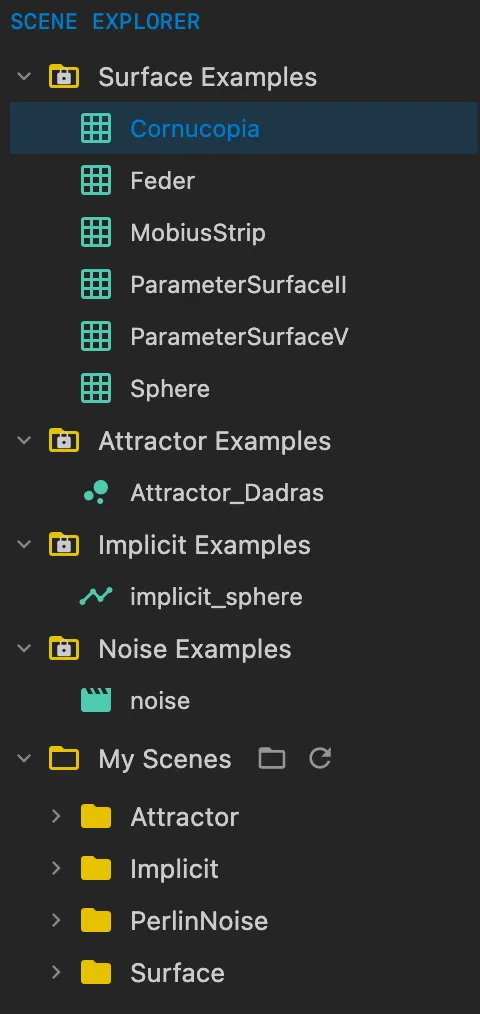
② Viewport: The canvas where your scene is rendered in real time.
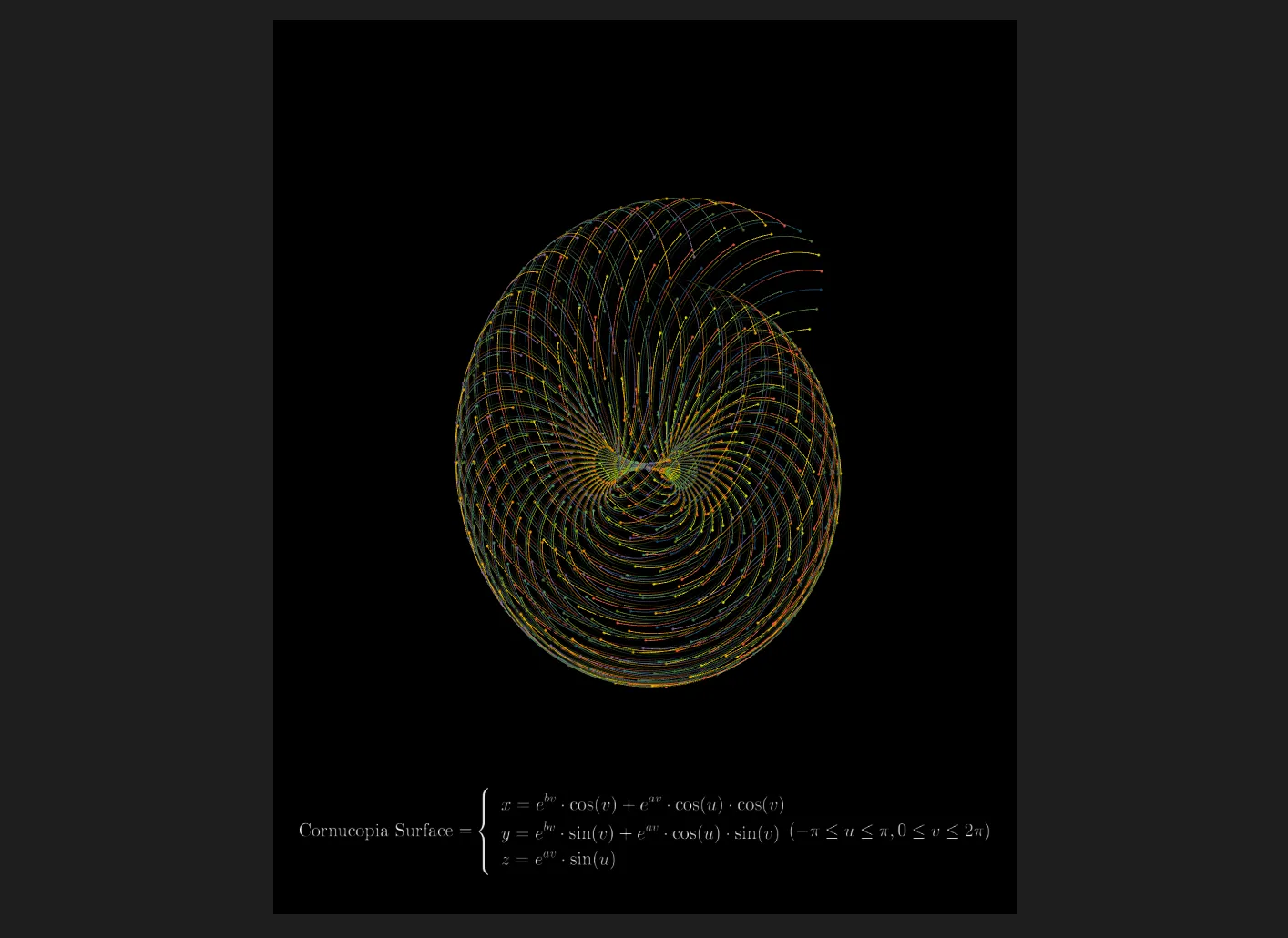
Note: viewport resolution and frame-rate can be adjusted in the application settings.
③ Inspector (Properties): Contextual controls for the selected scene.
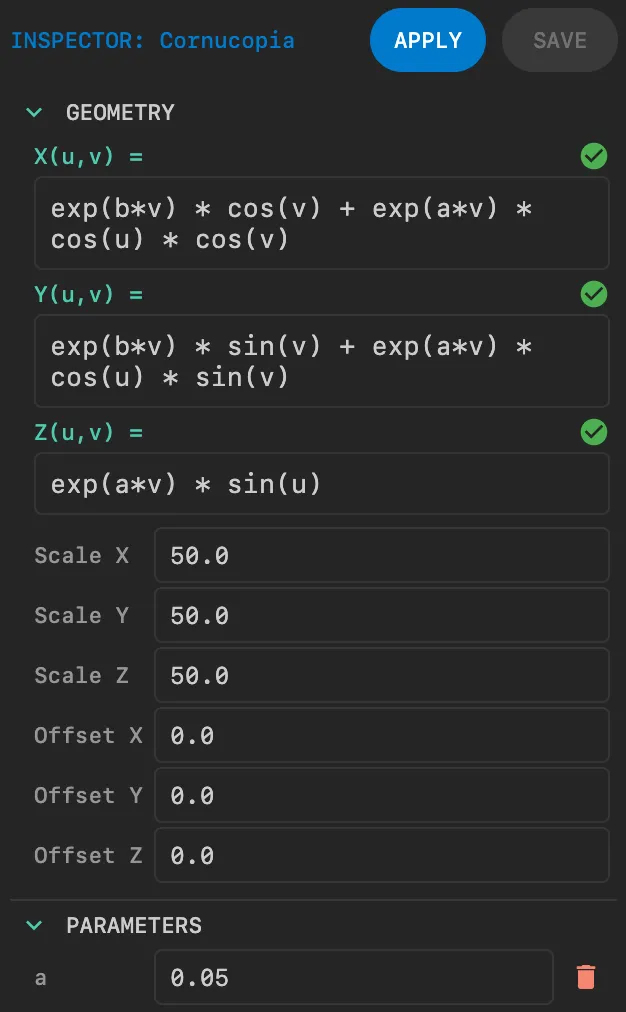
Note: each scene type exposes its own inspector sections and parameters.
④ Timeline: Non-linear editor for composing animations and camera moves.

2. Scene List (Left Panel)
This panel is the repository of mathematical models, organized by category.
Category browsing:
- Attractor: Chaotic systems (e.g. Lorenz, strange attractors).
- Surface: Parametric surfaces (Mobius, Klein Bottle, etc.).
- Implicit: Isosurfaces defined by implicit functions.
- Perlin Noise: Flow fields and noise-driven particle systems.
Select to load: Click any scene to load it into the viewport immediately.
Built-in vs user scenes: Built-in scenes are marked with a lock icon and cannot be edited. Your saved scenes appear under "My Scenes" and are editable.

3. Viewport (Center)
The viewport is where you interact with geometry and animation. When playback is paused you can manipulate the camera with mouse controls; while the animation is playing, interactive camera control is disabled to preserve the scripted motion.
Mouse controls
| Mouse Action | Function |
|---|---|
| Left-drag | Rotate (orbit) — hold and drag to rotate the view around the scene. |
| Scroll | Zoom — mouse wheel or trackpad scroll to zoom in and out. |
| Right-drag | Pan — move the camera laterally (useful for framing). |
4. Inspector (Right Panel)
When a scene is selected in the Scene List, the Inspector displays all available editable parameters for that scene.
A. Geometry
Shows the mathematical definitions and formulas that drive the geometry. You can edit expressions directly where supported.
B. Parameters
Custom numeric parameters (such as a, b, c) that the formulas reference. Changing these values updates the geometry in real time.
C. Appearance
Controls visual styling: colors, palette, line weight, dot size, and render modes.
5. Timeline (Bottom Panel)
The Timeline works like a simple non-linear editor for camera and parameter clips.
- Toolbar: Contains clip types (Wait, Animate, Align, Trails).
- Track view: Drag clips along the timeline to position them in time.
- Clip editing: Select a clip to edit properties in the right-side panel; use the floating controls to move or delete clips.
Tips
- Most panels are collapsible — click the small arrow on panel borders to fold them and get a distraction-free canvas.