
Domain Coloring
📖 Introduction
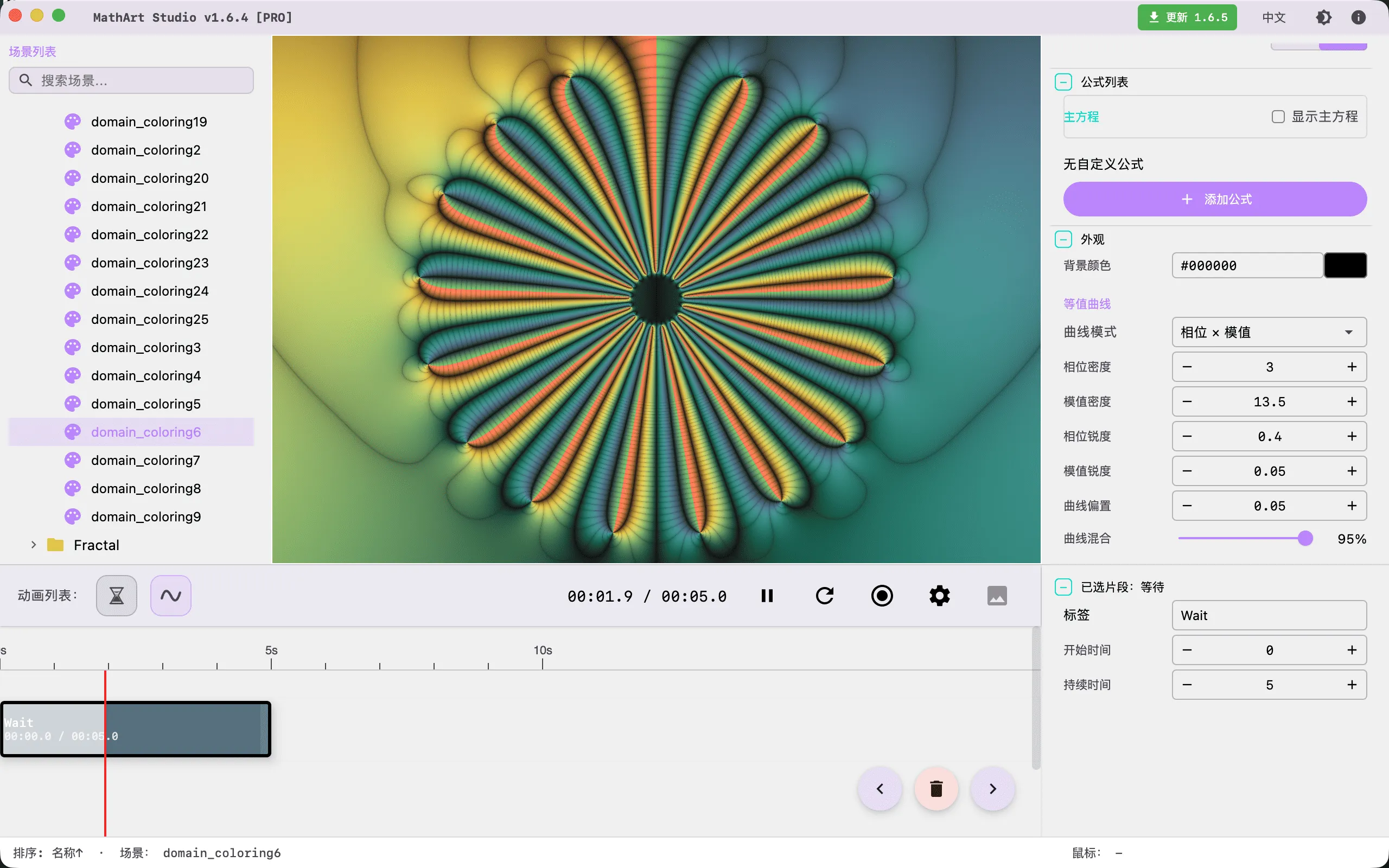
Domain Coloring is a classic method for visualizing complex-valued functions — it colors every point on the complex plane, allowing us to "see" the full picture of a function in the world of complex numbers. From Riemann's conformal mapping theory to modern fractal exploration, domain coloring transforms abstract complex analysis into an intuitive visual experience, making core concepts such as zeros, poles, and branch points immediately recognizable.
Key Capabilities:
- Free Formula Input: Supports 25 complex functions; enter any complex function expression and it is compiled to a GPU shader in real time
- Iterative Fractal System: Built-in three seed modes (Mandelbrot style, Julia style, Newton style) with custom iteration formulas
- Level Curve Visualization: Four level curve modes (Phase, Modulus, Phase+Modulus, None) with fine-grained control over stripe density and sharpness, plus template-based random exploration for faster look development
- Palette System: Supports manual, cosine, and curve gradient modes, combined with JSON palettes for rich color expression
- Full Animation Support: Parameter oscillation animation, domain rotation animation, and gradient animation, with edge easing for smooth transitions
- GPU/CPU Dual-Path Rendering: GPU-first with automatic CPU fallback for compatibility
🧮 Mathematical Background
What is Domain Coloring?
A complex-valued function f(z) maps one complex number z to another complex number w = f(z). Unlike real-valued functions, the graph of a complex function cannot be directly plotted on a two-dimensional plane — because both input and output are two-dimensional. Domain coloring solves this problem by coloring each point z on the complex plane: the color encodes information about f(z).
Specifically, domain coloring leverages two fundamental properties of complex numbers:
- Modulus: The magnitude |f(z)|, representing the "distance" of the function value
- Argument: The angle arg(f(z)), representing the "direction" of the function value
Coloring Principles of Domain Coloring
The most commonly used scheme in domain coloring is the phase-modulus coloring method:
- Phase Coloring: The argument arg(f(z)) is mapped to the hue wheel. The argument from -π to +π corresponds to the hue cycling from red through green and blue back to red, forming a complete rainbow loop. Points with the same argument share the same hue.
- Modulus Coloring: The modulus |f(z)| is mapped to brightness variations. Through striping, the modulus level curves appear as concentric ring patterns, helping identify the growth and decay of the function.
By fine-tuning the level curve parameters, you can control the density, sharpness, and blending of phase stripes and modulus stripes, achieving visual effects ranging from soft gradients to sharp contour lines.
Key Features in Domain Coloring Images
In domain coloring images, you can visually identify the following important features from complex analysis:
| Feature | Visual Appearance | Mathematical Meaning |
|---|---|---|
| Zero | All colors converge at a point; the hue wheel completes a full cycle | f(z₀) = 0; the argument rotates around the zero |
| Pole | Colors converge in reverse; the hue wheel cycles in the opposite direction | f(z₀) → ∞; the modulus tends to infinity |
| Branch point | Colors jump discontinuously | Branch cut of a multi-valued function |
| Saddle point | Colors form a cross pattern | Critical point of the function |
Fun fact: The number of times the hue wheel cycles around a zero equals the order of that zero. For example, f(z) = z³ has a third-order zero at z = 0, and the hue wheel cycles three times — visible in the domain coloring image as the color changing three times faster.
Historical Background
The concept of domain coloring dates back to the late 1980s. Mathematician Frank Farris systematically popularized the method in his 1997 paper, promoting it as a visualization tool for teaching complex analysis. Before this, complex function visualization primarily relied on contour plots and cross-sections, which could not reveal the full picture of a function.
With the development of computer graphics, domain coloring evolved from a teaching tool into a medium for mathematical art creation. By selecting different complex functions, adjusting level curve parameters, and choosing color palettes, one can create stunning visual patterns — from elegant pole structures to complex fractal boundaries, every domain coloring image embodies profound mathematical structure.
🖥️ Interface Overview
All controls are located in the inspector panel on the right, divided into five main sections:
- Geometry: Enter complex function formulas, adjust the viewport, and configure the iteration system
- Settings: Switch between GPU/CPU rendering modes
- Formulas: Display mathematical formulas and annotations
- Appearance: Adjust background color, level curve parameters, and gradient palettes
- Parameters: Define custom constants used in formulas
Note: Domain Coloring is a purely 2D scene and does not display the Camera panel.
⚙️ Configuration Guide
1. Geometry (Geometry Settings)
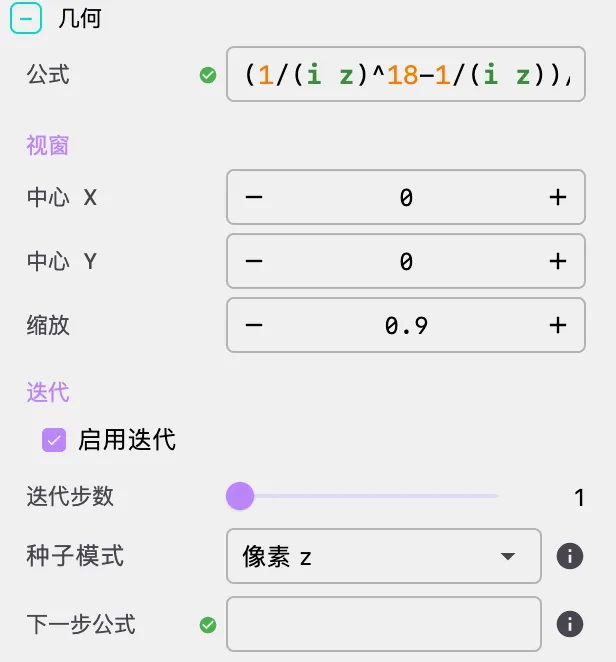
Formula Input
Formula input is the core of domain coloring. You can enter any complex function expression here, and the system will compile it into a GPU shader and render it in real time.
Supported Variables:
| Variable | Meaning | Description |
|---|---|---|
z | Pixel complex coordinate | Represents the position of the current pixel on the complex plane |
i | Imaginary unit | i² = -1 |
pi | Circle constant π | ≈ 3.14159 |
e | Euler's number e | ≈ 2.71828 |
c | Complex constant | Defined by formula parameters a + bi |
| Custom parameters | e.g., t, a, b | Defined in the Parameters panel |
Supported Operators:
| Operator | Example | Description |
|---|---|---|
+ | z + 1 | Complex addition |
- | z - i | Complex subtraction |
* | z * i | Complex multiplication (can be omitted: 2z = 2*z) |
/ | 1/z | Complex division |
^ | z^3 | Complex exponentiation |
Supported Functions (25):
| Category | Functions | Description |
|---|---|---|
| Trigonometric | sin, cos, tan | Complex trigonometric functions |
| Inverse trigonometric | asin, acos, atan, acot, asec, acsc | Complex inverse trigonometric functions |
| Hyperbolic | sinh, cosh, tanh | Complex hyperbolic functions |
| Inverse hyperbolic | asinh, acosh, atanh, acoth, arsech | Complex inverse hyperbolic functions |
| Exponential/Logarithmic | exp, log, ln | Complex exponential and logarithmic functions |
| Other | sqrt, abs, arg, conj, pow, re, im | Square root, absolute value, argument, conjugate, power, real part, imaginary part |
Formula Examples:
| Formula | Description |
|---|---|
z^3 - 1 | Cubic polynomial with three zeros |
sin(z)/cos(z) | Tangent function tan(z) |
1/z | Reciprocal function with a pole at z=0 |
exp(1/z) | Essential singularity with rich structure at z=0 |
z^(a+3i) | Complex power with parameter a controlling the exponent |
sin(z-i)/sin(z+i) | Sine function with shifted poles |
sqrt(1-1/z^2+z^3) | Composite function with square root |
Tip: After modifying the formula, you need to click the "Apply" button for changes to take effect, because formula changes require shader recompilation.
Viewport Controls
Viewport controls determine the observation range of the complex plane:
- Center X / Center Y: The center coordinates of the viewport on the complex plane
- Default: (0, 0)
- Step: 0.05, precision: 6 decimal places
- Tip: You can pan the viewport by dragging the canvas with the mouse
- Scale: Zoom ratio
- Default: 2.5
- Range: 0.000001 ~ unlimited
- Smaller values show a larger area (zoom out); larger values show a smaller area (zoom in)
- Tip: You can zoom the viewport using the mouse scroll wheel
Operation tip: Mouse drag to pan + scroll wheel to zoom is the fastest way to explore, more intuitive than manually entering coordinates.
Iteration System
The iteration system is an advanced feature of domain coloring that extends single function evaluation to multiple iterations, enabling the generation of fractal patterns.

Enabling Iteration
Check the "Enable Iteration" toggle, and the system will perform multiple iteration calculations for each pixel instead of evaluating f(z) only once.
Iteration Steps
- Steps: Number of iteration steps, range 1 - 64
- More steps produce richer fractal detail but require more computation
- Recommended starting point: 8-15 steps, then gradually increase to observe the effect
Seed Mode
The seed mode determines the initial value for iteration:
| Mode | Initial Value | Typical Use | Example |
|---|---|---|---|
| PIXEL_Z | Pixel coordinate z | Mandelbrot set style | w₀ = z, w_{k+1} = w_k² + c |
| ZERO | 0 | Julia set style | w₀ = 0, w_{k+1} = w_k² + z |
| CONSTANT_C | Constant c | Newton fractal style | w₀ = c, w_{k+1} = (w_k³-1)/(3w_k²) + c |
Understanding Seed Modes:
- In PIXEL_Z mode, the iteration starting point for each pixel is its coordinate on the complex plane. This is the most intuitive mode, suitable for exploring the Mandelbrot set and its variants.
- In ZERO mode, all pixels start iterating from 0, but z participates in the iteration formula as a parameter. This is suitable for generating Julia set patterns.
- In CONSTANT_C mode, the iteration starting point is the constant c (defined by formula parameters), suitable for Newton's method for finding roots and similar applications.
Iteration Formula
The iteration formula uses the w variable for the current iteration value and z for the pixel coordinate:
| Iteration Formula | Description |
|---|---|
w^2 + c | Classic Mandelbrot/Julia iteration |
(w^3-1)/(3*w^2) + c | Newton's method for roots of z³=1 |
sin(w)cos(w)/(1+w) | Trigonometric iteration |
sin(w + z^2) | Composite iteration |
w | Identity iteration (uses only the result of the initial formula) |
Note: When the iteration formula is
w, the system uses only the result of the initial formula f(z) as the iteration output. Combined with a higher number of iteration steps, this can produce a smooth accumulation effect.
2. Settings
The settings panel for domain coloring is very simple, providing only the rendering mode switch:
- GPU Mode (default): Uses OpenGL shaders for real-time rendering with the best performance
- CPU Mode: Uses CPU per-pixel calculation as a fallback for the GPU mode
Recommendation: Always use GPU mode for the best performance. Switch to CPU mode only if GPU rendering has issues.
3. Formulas (Formula Display)
Display mathematical formulas and equation annotations in the scene.
Main Equation Display
- Show Main Equation: Toggle the main equation display on/off
- When enabled, the system automatically displays the LaTeX formula in the scene based on the current formula
- Position and Style:
- X / Y: Position coordinates of the formula in the scene
- Scale: Formula scaling ratio
- Color: Formula text color
Custom Formulas
You can add multiple custom formulas to the scene:
- Click the "Add Formula" button to add a new formula
- Each formula supports LaTeX content, position, scale, and color settings
- Click the delete button in the top-right corner of a formula to remove it
4. Appearance
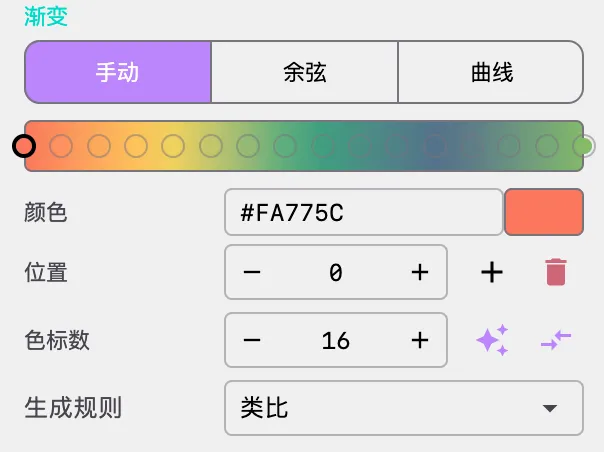
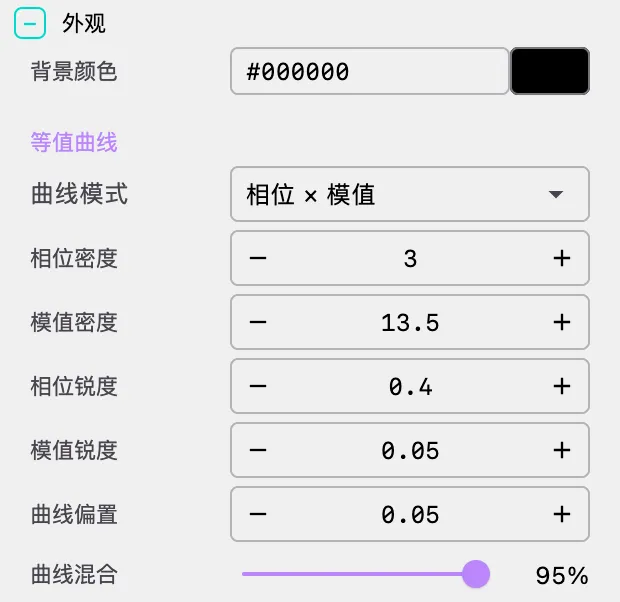
Background Color
- Background Color: Set the rendering background color
- Domain coloring typically uses dark backgrounds (such as
#05070Dor#000000) to highlight the function's color information
- Domain coloring typically uses dark backgrounds (such as
Level Curve
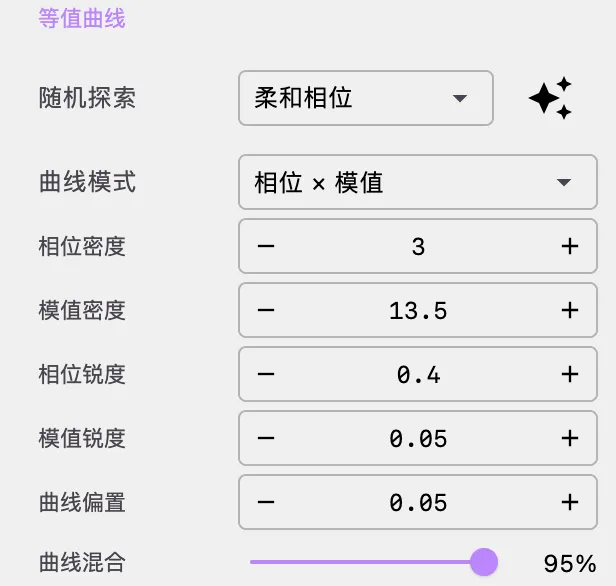
Level curves are the core visual control parameters of domain coloring, determining how the function's phase and modulus information is transformed into visible stripe patterns.
Random Explore
After changing the formula, you often need several passes on the level-curve parameters before the image starts to look right. To speed up exploration, the Level Curve area includes a template-based random exploration tool:
- The
Random Exploredropdown on the left is used to choose a style template and matches the visual style ofCurve Mode - Choosing a template by itself does not immediately change the current parameters
- The generate button on the right creates and applies a new set of
Level Curveparameters for the currently selected template - You can click the generate button repeatedly under the same template to quickly browse multiple variations
Built-in templates:
| Template | Characteristics | Best For |
|---|---|---|
| Soft Phase | Phase-first stripes with conservative density and softer transitions | Reading broad hue flow and directional structure around zeros and poles |
| Ring Hierarchy | Modulus-first stripes with stronger ring layering and distance cues | Observing growth, decay, and ring-like modulus structure |
| Cross Texture | Combines phase and modulus stripes into denser crossed textures | Images that need richer structure and more layered detail |
| Clear Contours | Emphasizes crisp, readable contour lines over soft blending | Highlighting level-curve boundaries and structural edges |
| Pure Random | Explores the full parameter space more freely within safe bounds | Discovering unexpected looks and escaping the current style bias |
Recommended workflow: pick the template closest to the mood you want, click generate a few times to collect candidates, then fine-tune
Phase Density,Mod Density,Sharpness,Bias, andMixmanually.
Curve Mode
| Mode | Description | Use Case |
|---|---|---|
| PHASE | Display phase stripes only | Highlight argument variations; observe hue wheels at zeros and poles |
| MODULUS | Display modulus stripes only | Highlight modulus variations; observe constant-modulus curves |
| PHASE_MODULUS | Display both phase and modulus stripes | Most commonly used mode, combining both phase and modulus information |
| NONE | No level curves | Pure hue mapping, suitable for appreciating overall colors |
Recommendation: Beginners should use
PHASE_MODULUSmode, which provides the most information. Switch toPHASEmode when you want to focus on the hue structure of zeros and poles.
Phase Density
- Range: 0.01 ~ unlimited
- Default: 12.0
- Step: 0.5
- Effect: Controls the density of phase stripes. Higher values produce denser stripes with more frequent color changes
- Suggestions:
- Low values (3-5): Wide stripes, suitable for observing large-scale hue variations
- Medium values (8-15): Standard density, balancing detail and readability
- High values (30+): Fine stripes, producing a contour-line-like effect
Modulus Density
- Range: 0.01 ~ unlimited
- Default: 8.0
- Step: 0.5
- Effect: Controls the density of modulus stripes. Higher values produce denser concentric ring patterns
- Suggestions:
- Low values (5-8): Wide rings, suitable for observing overall modulus trends
- Medium values (10-18): Standard density
- High values (50+): Fine ring patterns, detailed display of modulus variations
Phase Sharpness
- Range: 0.01 ~ unlimited
- Default: 1.0
- Step: 0.1
- Effect: Controls the sharpness of phase stripes. Higher values produce sharper stripe boundaries; lower values produce softer stripes
- Suggestions:
- 0.1-0.4: Soft gradients with smooth color transitions
- 0.5-1.0: Standard sharpness
- 1.0+: Sharp stripes with clearly distinguishable level curves
Modulus Sharpness
- Range: 0.01 ~ unlimited
- Default: 1.0
- Step: 0.1
- Effect: Controls the sharpness of modulus stripes, similar to phase sharpness
Curve Bias
- Range: -1.0 ~ 1.0
- Default: 0.15
- Step: 0.05
- Effect: Adjusts the overall brightness offset of level curves. Positive values brighten, negative values darken
- Suggestions: Usually keep values close to 0; fine-tuning can improve the visual effect for specific functions
Curve Mix
- Range: 0% ~ 100% (0.0 ~ 1.0)
- Default: 100% (1.0)
- Effect: Controls the blending ratio between level curves and pure hue mapping
- 0%: Pure hue mapping with no level curve effect
- 100%: Full level curve display
- Suggestions: In most cases, keep 90%-100%; reducing the mix produces a softer visual effect
Gradient Palette
Domain coloring uses a 1D LUT (lookup table) texture for coloring, supporting three gradient modes:
- Manual Mode:
- Manually add, delete, and adjust color nodes
- Supports drag-and-drop reordering of colors
- Random strategy selection (monochromatic, analogous, complementary, split-complementary)
- Cosine Mode:
- Uses the IQ cosine palette formula: color(t) = a + b · cos(2π(c·t + d))
- Independently control offset, amplitude, frequency, and phase for R/G/B channels
- Supports one-click randomization and application
- Curve Mode:
- Control R/G/B channels independently through editable Bézier curves
- Provides the most flexible color control
- Supports one-click randomization and application
Palette Selection Tips:
- Classic domain coloring uses a rainbow palette (red → yellow → green → cyan → blue → magenta → red), corresponding to the hue wheel
- Monochromatic palettes highlight level curve structure while de-emphasizing hue information
- Contrasting palettes emphasize the positions of zeros and poles
5. Parameters
Define custom constants used in formulas. When a formula contains parameters (such as t, a, b, etc.), you need to define their values in this panel.
- Add Parameter: Enter the parameter name and initial value at the bottom, then click the add button
- Modify Parameter: Directly edit the parameter value
- Delete Parameter: Click the delete button to the right of the parameter
Important: Parameters used in formulas must be defined in the Parameters panel first, otherwise formula validation will report an error. Parameter values can be dynamically changed in animations.
🎬 Animation and Timeline
Domain coloring supports rich animation effects that can be combined into continuous sequences through the timeline system.
Animation Types
Domain coloring supports two timeline animation types:
- Wait: Maintain the current state for a specified duration
- Animate: Execute a set of animation actions
Available Animation Methods
| Method | Description | Parameters |
|---|---|---|
domainRotate | Domain rotation animation | rotation_speed: rotation speed (float, default 0.2) |
paramStart | Start parameter oscillation animation | Parameter configuration (see below) |
paramStop | Stop parameter oscillation animation | None |
gradientStart | Start gradient animation | Gradient configuration (see below) |
gradientStop | Stop gradient animation | None |
Parameter Oscillation Animation
Parameter oscillation animation makes parameters undergo periodic sinusoidal oscillation within a specified range — the most powerful animation feature of domain coloring.
How It Works
- For each parameter, specify the step size, range (min, max), and edge easing
- The parameter value oscillates sinusoidally within [min, max]:
value = mid + amp × sin(phase) - The oscillation speed is controlled by the step size and step scale factor
- Edge easing ensures the parameter decelerates near range boundaries, avoiding abrupt changes
Animatable Parameters
| Parameter | Description | Default Animation Range |
|---|---|---|
scale | Viewport scale | 0.5 ~ 1.5 |
phaseDensity | Phase density | 5.0 ~ 10.0 |
modDensity | Modulus density | 5.0 ~ 10.0 |
phaseSharpness | Phase sharpness | 0.001 ~ 2.0 |
modSharpness | Modulus sharpness | 0.001 ~ 2.0 |
| Custom parameters | e.g., t, a | -100 ~ 100 |
Edge Easing
Edge easing controls the speed variation of parameters at oscillation extremes, preventing hard bounces:
window: Easing window size (0-1); larger values produce wider easing intervalsfloor: Minimum speed ratio during easing (0-1); 0 means complete stopeasing: Easing function type (e.g.,SINE_OUT,QUAD_OUT, etc.)
Domain Rotation Animation
The domain rotation animation rotates the entire complex plane around the origin, producing a kaleidoscope-like visual effect:
- Rotation speed is a floating-point number; positive values rotate clockwise, negative values counterclockwise
- Typical values: 0.1 (slow rotation) ~ 0.5 (fast rotation)
Gradient Animation
Gradient animation shifts the palette cyclically, producing a color flow effect:
mode: Gradient mode, such asHUE_ROTATE(hue rotation)speed: Animation speedinterpolation: Color interpolation mode (RGB,LINEAR,OKLAB,OKLCH)affectInside/affectOutside: Whether to affect the inside/outside of level curves
Configuration Method
Define animation sequences through the timeline array in the JSON configuration file:
{
  "timeline": [
    { "type": "wait", "duration": 1 },
    {
      "type": "animate", "duration": 15, "easing": "SINE_IN_OUT",
      "actions": [
        { "method": "domainRotate", "args": [0.1] },
        {
          "method": "paramStart",
          "args": [{
            "targetDomain": "SURFACE",
            "parameters": {
              "t": { "step": 0.005, "min": 0.6, "max": 1.7,
                     "edgeEasing": { "window": 0.35, "floor": 0.4, "easing": "QUAD_OUT" } },
              "phaseDensity": { "step": 0.005, "min": 5, "max": 14 },
              "modDensity": { "step": 0.005, "min": 2, "max": 7 }
            }
          }]
        }
      ]
    },
    { "type": "wait", "duration": 30 }
  ]
}
📐 Classic Domain Coloring Examples
Example 1: Cubic Polynomial
The most classic domain coloring example, showing the hue wheel structure of three zeros.
Formula: z^3 - 1
Viewport: Center (0, 0), Scale 0.8
Level Curve: PHASE_MODULUS, Phase Density 20, Mod Density 17Interpretation: The three zeros are located at 1, e^{2πi/3}, and e^{4πi/3}, appearing as three color convergence points in the image. The hue wheel completes one full cycle around each zero.
Example 2: Sine Function with Shifted Poles
Demonstrates the symmetric shifting of sine function poles.
Formula: sin(z-i)/sin(z+i)
Viewport: Center (0, 0), Scale 0.3
Level Curve: PHASE_MODULUS, Phase Density 4, Mod Density 16
Example 3: Parameterized Sine Function
Controls the sine function offset through parameter t, suitable for animation.
Formula: sin(z-1)/sin(z+t i)
Parameter: t = 0.95
Viewport: Center (0, 0), Scale 0.6
Level Curve: PHASE_MODULUS, Phase Density 4.5, Mod Density 13.5
Animation: Parameter t oscillates in range [2, -2]
Example 4: Complex Power
Complex power produces spiral domain coloring patterns with striking visual impact.
Formula: z^(a+3i)
Parameter: a = 1
Viewport: Center (0, 0), Scale 2.6
Level Curve: PHASE_MODULUS, Phase Density 4.5, Mod Density 13.5
Animation: Parameter a oscillates in range [1, 3]
Example 5: Newton Fractal
Uses Newton's iteration method to find the roots of z³ = 1, generating the classic Newton fractal pattern.
Formula: z (identity mapping)
Iteration: Enabled, Seed Mode CONSTANT_C, Steps 8
Iteration Formula: (w^3-1)/(3*w^2) + c
Viewport: Center (0, 0), Scale 0.5
Level Curve: PHASE_MODULUS, Phase Density 13, Mod Density 7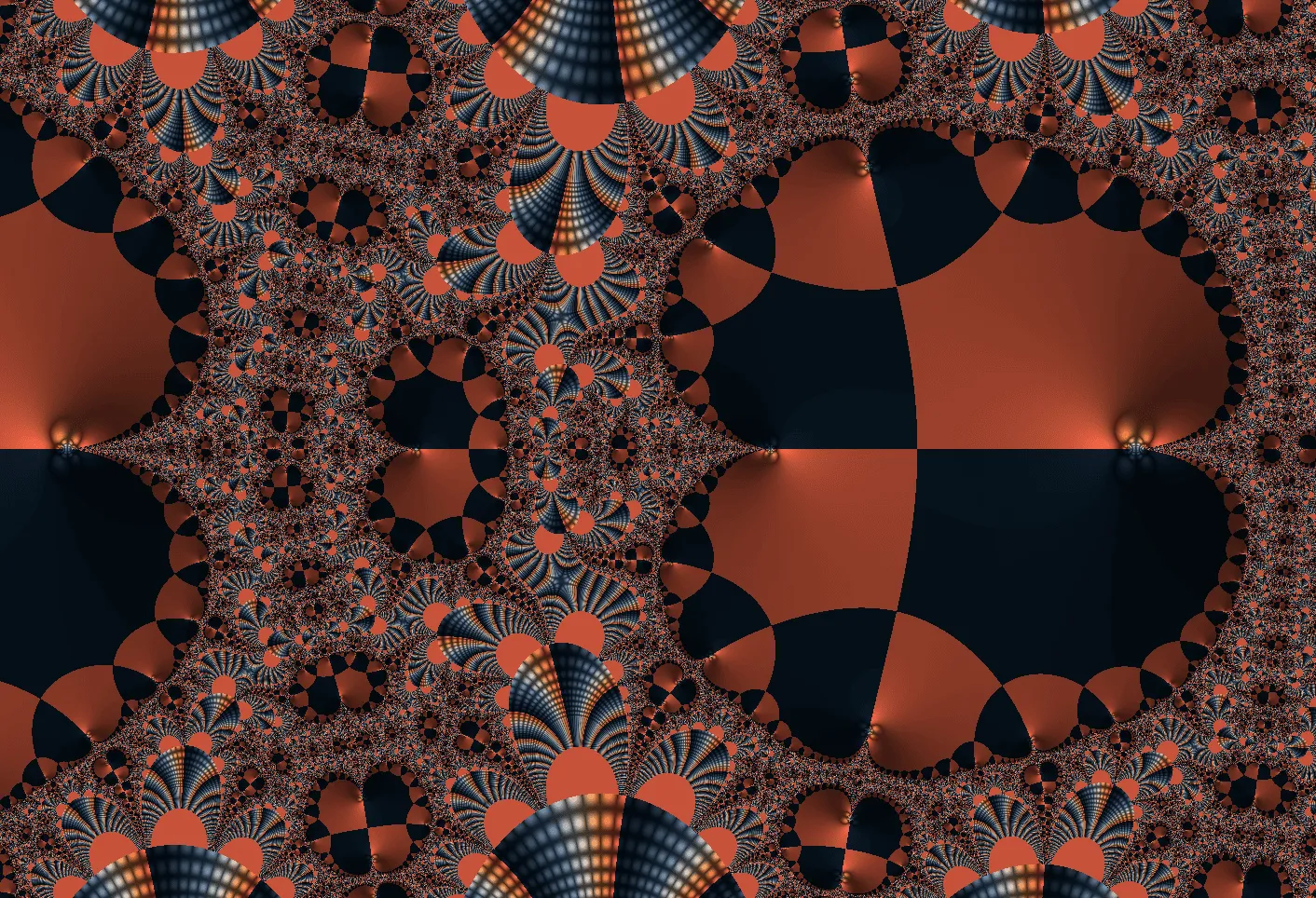
Interpretation: Newton's method divides the complex plane into three basins (corresponding to the three roots), each represented by a different color. The boundaries between basins exhibit fractal structure — no matter how much you zoom in, the boundaries maintain complex detail.
Example 6: Trigonometric Iteration
Fractal patterns generated using trigonometric function iteration.
Formula: z (identity mapping)
Iteration: Enabled, Seed Mode PIXEL_Z, Steps 45
Iteration Formula: sin(w)cos(w)/(1+w)
Escape Radius: 64
Viewport: Center (-0.5, 0), Scale 0.5
Level Curve: PHASE_MODULUS, Phase Density 10, Mod Density 6
Example 7: ZERO Seed Iteration
Iteration starting from zero, generating Julia set style patterns.
Formula: z (identity mapping)
Iteration: Enabled, Seed Mode ZERO, Steps 27
Iteration Formula: sin(w + z^2)
Escape Radius: 1024
Viewport: Center (0, 0), Scale 1.2
Level Curve: PHASE_MODULUS, Phase Density 9, Mod Density 5
Example 8: Rational Function
Domain coloring of a rational function shows the interwoven structure of zeros and poles.
Formula: ((z^2 - 1)(z - 2 - i)^2) / (z^2 + 2 + 2i)
Viewport: Center (0, 0), Scale 0.3
Level Curve: PHASE_MODULUS, Phase Density 5, Mod Density 18
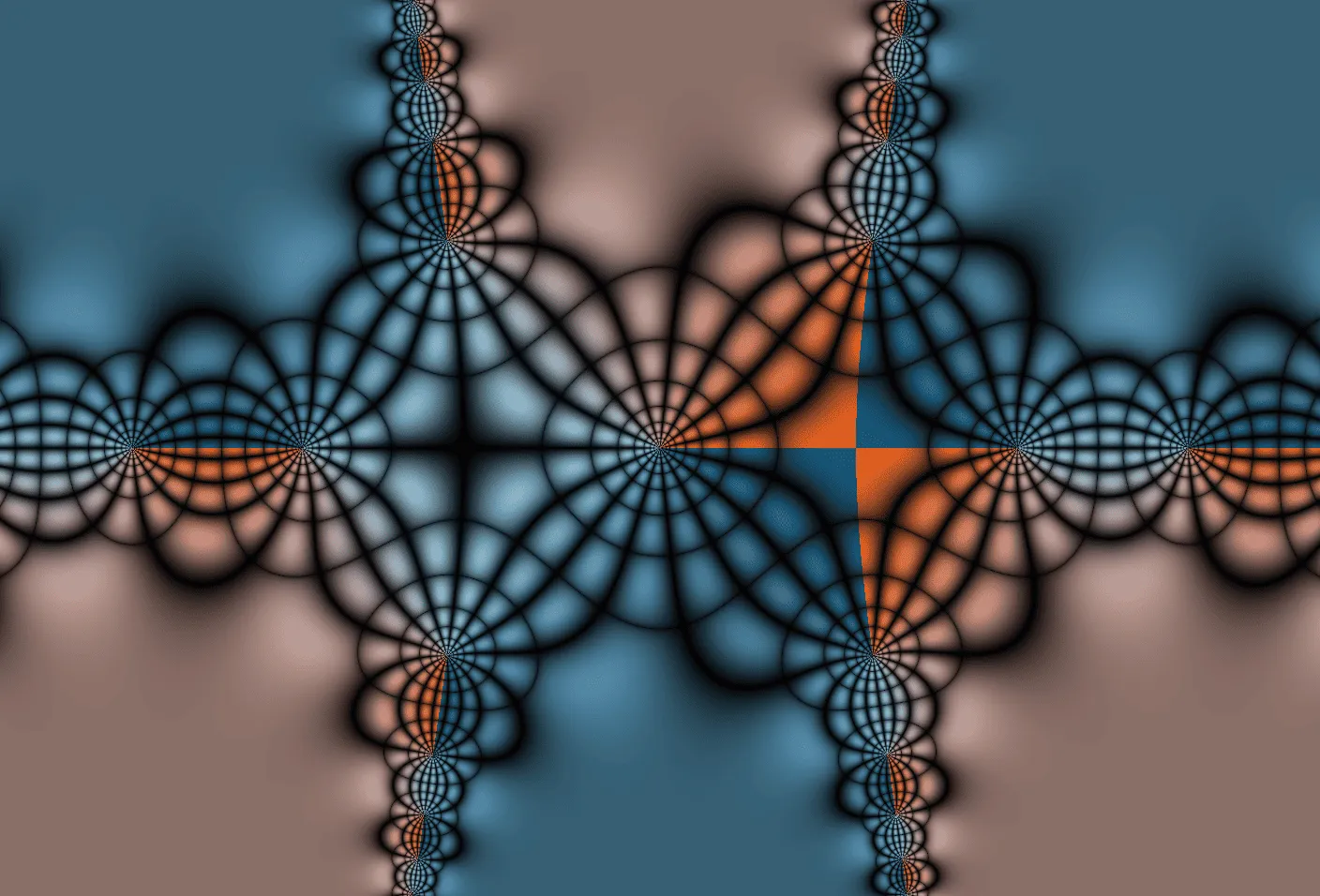
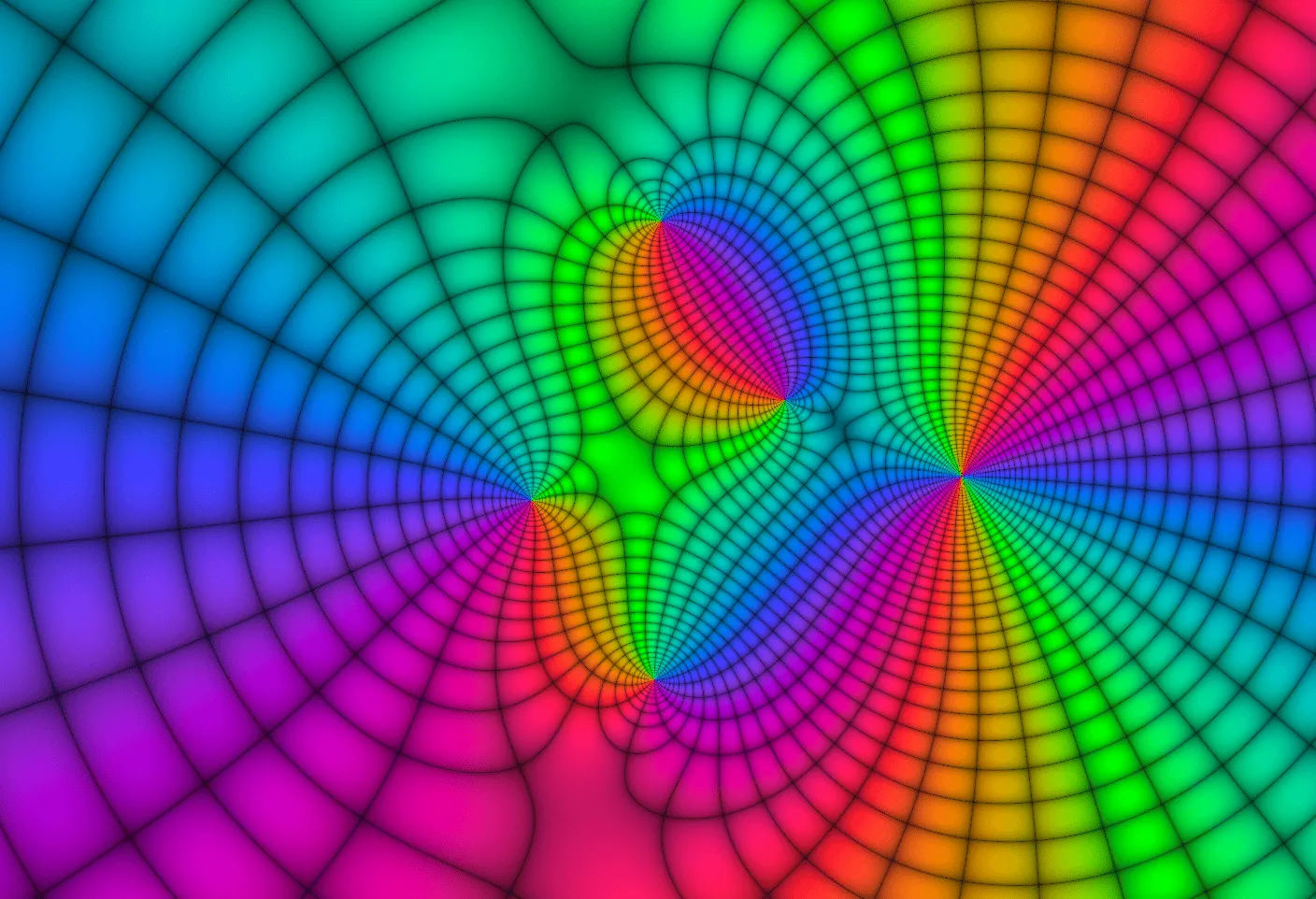
More Showcase
🔧 Technical Details
GPU Rendering Pipeline
Domain coloring uses a single-pass GPU rendering pipeline:
- Vertex Shader: Performs MVP transformation and passes UV coordinates
- Fragment Shader (core rendering logic):
- UV → complex plane coordinate mapping (with aspect ratio correction and rotation)
- Formula evaluation (with iteration)
- Overflow protection (marks values where |f(z)|² > 10²⁴)
- Compute modulus and argument
- Generate phase stripes and modulus stripes (based on cosine functions)
- Palette sampling + level curve blending + bias
Dynamic Shader Compilation
The most sophisticated technical implementation of domain coloring is dynamic shader compilation:
- Formula Parsing:
ComplexExpressionParserparses the string formula (e.g.,z^3 - tan(t*z)) into an Abstract Syntax Tree (AST) - GLSL Code Generation: The AST is converted to a GLSL expression (e.g.,
c_sub(c_pow_int(z, 3), c_mul(c_tan(c_mul(t, z)), vec2(1.0, 0.0)))) - Shader Injection: Dynamic formula macros and parameter declarations are inserted into the standard shader source code
- Caching Mechanism: Recompilation is avoided by comparing with the previously compiled GLSL code
Complex Number Library
The shader includes a complete GLSL complex number library with 25 complex functions. The Java and GLSL implementations are fully consistent, ensuring that CPU and GPU paths produce identical results.
Creative Tips
Formula Exploration
- Start Simple: Try basic functions like
z^2,1/z,sin(z)first to understand the visual language of domain coloring - Combine Functions: Combine basic functions, e.g.,
sin(z)/cos(z)=tan(z), and observe the relationship between zeros and poles - Introduce Parameters: Add parameter t to formulas, e.g.,
z^3 - tan(t*z), then animate the parameter - Try Iteration: Enable the iteration system and use iteration formulas like
w^2 + cto generate fractals
Visual Tuning
- Level Curve Adjustment:
- Start with
PHASE_MODULUSmode for complete information - After changing the formula, use
Random Exploreto generate a few promising candidates before fine-tuning by hand - Adjust phase density and modulus density for appropriate stripe spacing
- Adjust sharpness for clear but not harsh stripe boundaries
- Fine-tune mix and bias for the best visual effect
- Start with
- Palette Selection:
- Rainbow palette: The most classic domain coloring palette, corresponding to the hue wheel
- Warm-cool palette: Highlights the contrast between zeros (warm colors) and poles (cool colors)
- Monochromatic palette: Highlights level curve structure while de-emphasizing hue information
- Viewport Control:
- Use mouse drag and scroll wheel for quick navigation to areas of interest
- Zoom in near zeros or poles to observe fine fractal structures
Animation Design
- Parameter Oscillation:
- Set oscillation animation for parameter t in the formula to observe continuous morphological changes
- Simultaneously oscillate phaseDensity and modDensity for a "breathing" effect
- Use edge easing to avoid abrupt changes at parameter extremes
- Domain Rotation:
- Combine domain rotation with parameter oscillation for a rotating kaleidoscope effect
- Recommended rotation speed: 0.05-0.2; faster speeds can be disorienting
- Gradient Animation:
- Use
HUE_ROTATEmode for cyclic palette flow - OKLAB interpolation mode produces more natural color transitions than RGB mode
- Use
FAQ
Image is Completely Black or White
Problem: The rendering result is entirely black or entirely white
Cause: The function values are too large or too small in certain regions, compressing the color information
Solution:
- Adjust Scale to change the observation range
- Adjust level curve parameters: increase phaseDensity and modDensity
- Check if the function is defined in the current viewport range (e.g.,
1/zis undefined at z=0)
Formula Compilation Failure
Problem: Compilation error after entering a formula
Cause: Incorrect formula syntax or use of unsupported functions
Solution:
- Ensure you use supported function names (case-sensitive)
- Ensure all parameters used are defined in the Parameters panel
- Check that parentheses are properly matched
- Use
*for multiplication (2zcan be omitted, butz(z+1)is recommended to be written asz*(z+1))
Unsatisfactory Iteration Results
Problem: The image effect after enabling iteration is not as expected
Cause: Improper iteration parameter configuration
Solution:
- Try different seed modes (PIXEL_Z / ZERO / CONSTANT_C)
- Adjust iteration steps (start from 8-15 steps)
- Check if the iteration formula is correct
- Adjust the escape radius (default 1,000,000; some functions may need smaller values)
Shader Compilation Stuttering
Problem: Brief stuttering after modifying the formula
Cause: Formula changes require GPU shader recompilation
Solution:
- This is normal behavior; compilation typically completes within 0.5 seconds
- Only formula and iteration formula changes require recompilation; other parameter modifications update in real time
💡 Advanced Topics
Understanding Local Behavior of Complex Functions
Domain coloring is a powerful tool for understanding the local behavior of complex functions:
- Zeros: Near a zero, f(z) ≈ a·(z-z₀)ⁿ, the hue wheel cycles n times
- Poles: Near a pole, f(z) ≈ a/(z-z₀)ⁿ, the hue wheel cycles in reverse n times
- Essential singularities: Near an essential singularity (e.g., exp(1/z) at z=0), color changes are extremely dramatic, showing "infinite oscillation"
The Relationship Between Mandelbrot and Julia Sets
Through the domain coloring iteration system, you can explore both the Mandelbrot set and Julia sets:
- Mandelbrot Set: Use PIXEL_Z seed mode with iteration formula
w^2 + c, where c is a constant. Each pixel z serves as the initial value, and c as a parameter - Julia Set: Use ZERO seed mode with iteration formula
w^2 + z, where z is the pixel coordinate. All pixels start iterating from 0, with z as a parameter
The relationship between the two: each point c in the Mandelbrot set corresponds to a Julia set. Points c inside the Mandelbrot set produce connected Julia sets, while points outside produce disconnected Julia sets (Fatou dust).
Mathematical Principles of Newton Fractals
When using Newton's method to find roots of f(z) = 0, the iteration formula is:
For f(z) = z³ - 1, the iteration formula becomes:
The fascination of Newton fractals lies in this: although the three roots are simple points, the boundaries of their basins of attraction are infinitely complex fractals — another example of the coexistence of chaos and order.
📚 References
Mathematical Theory
- Tristan Needham - Visual Complex Analysis (1997) - Classic textbook on visual complex analysis
- Elias Wegert - Visual Complex Functions: An Introduction with Phase Portraits (2012) - Systematic treatment of domain coloring methods
- Frank Farris - "Visualizing complex-valued functions in the plane" (1997) - Paper popularizing the domain coloring method
Online Resources
- Wikipedia: Domain Coloring
- Wikipedia: Complex Analysis
- Complex Analysis - MIT OpenCourseWare - MIT complex analysis open course
Related Software
- Complex Explorer - Online domain coloring tool
- Wolfram Alpha - Supports complex function visualization