
Perlin Noise (Flow Field)
📖 Introduction
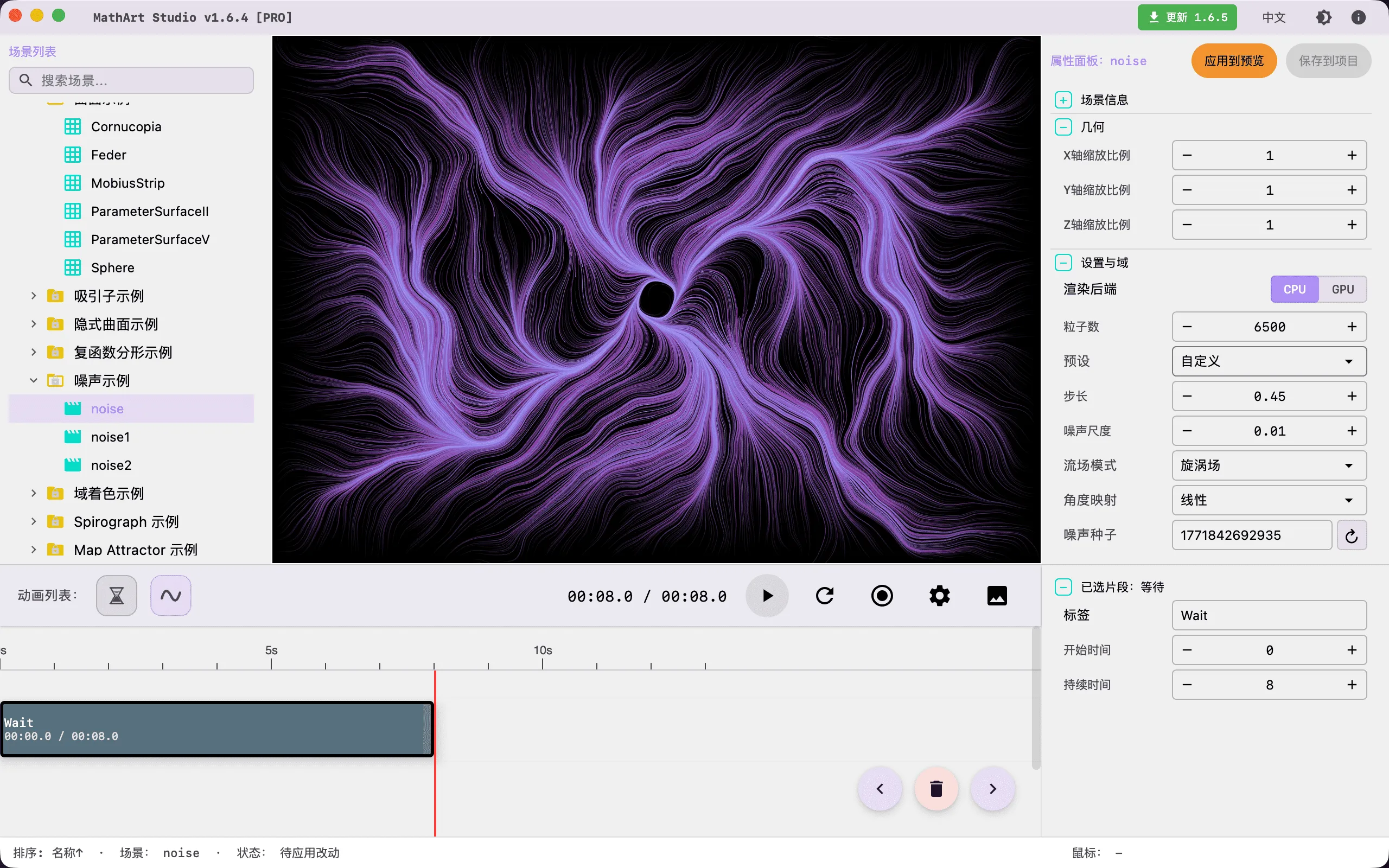
The Perlin Noise scene combines gradient noise theory from mathematics with particle systems to create mesmerizing organic flow visual effects — from silk-like gentle waves and nebula-like vortices to circuit-like geometric textures, each parameter combination embodies the mathematical beauty of noise functions and flow field dynamics.
Based on the gradient noise algorithm invented by Ken Perlin in 1983, this scene drives a large number of particles through a 2D noise field, using trail rendering and accumulation buffer techniques to generate rich flow field visualizations. It also provides a GPU shader rendering mode that generates noise textures in real-time through ray marching in screen space, supporting multiple texture styles and render styles.
Core Capabilities:
- Dual Rendering Engine: CPU particle system and GPU shader dual modes — CPU mode supports real-time interaction and parameter tuning, GPU mode supports high-quality video export
- Three Flow Field Modes: Angle Field, Vector Field, and Swirl Field, covering a wide range of effects from natural flows to rotational structures
- Constrained Random Parameters: Supports
RandomandDeep Randomexploration withConservative / Balanced / Aggressiveintensity levels, applying grouped and constrained randomization within the current CPU or GPU mode instead of blind uniform randomness - Accumulation Buffer Technology: An alternative to traditional trail rendering that draws particles onto a persistent texture with gradual fade-out, achieving silky fluid effects
- GPU Texture Styles: 6 built-in texture styles (Fiber, Streak, Silk, Water, Flame, Mist) and 2 render styles (Filament, Water)
- Palette System: Supports Manual, Cosine, and Curve gradient modes, combined with gradient animation for rich color expression
- Complete Animation Support: Integrated flow field animation, gradient animation, and camera animation systems
🧮 Mathematical Background
What is Perlin Noise?
Perlin Noise is a gradient noise algorithm invented by American computer scientist Ken Perlin in 1983. At the time, Perlin was working on visual effects for the film Tron (1982) and was dissatisfied with the "machine-like" appearance of computer-generated textures. He created this noise function that produces natural, organic-looking results. For this invention and his profound contributions to computer graphics, Perlin received an Academy Award for Technical Achievement in 1997.
Why Does Perlin Noise Look "Natural"?
Unlike simple random noise (white noise), the key characteristic of Perlin noise is spatial continuity — noise values at adjacent positions transition smoothly rather than jumping randomly. This property allows it to simulate naturally occurring continuous phenomena such as clouds, terrain, and water flow.
Mathematical Principles of Perlin Noise
Perlin noise is a type of gradient noise. The core idea is to generate random gradient vectors at integer coordinate grid points, then compute smooth noise values through interpolation within grid cells. Mathematically, for position , the noise function is obtained by interpolating the gradients from the four surrounding grid points:
where is the random gradient vector at grid point , and are smooth interpolation weights (computed using the ease curve ).
By adjusting the noise scale and time parameters, you can control the spatial frequency and time-varying characteristics of the noise field.
Mathematical Principles of Flow Fields
A flow field is a function that maps each position in space to a direction vector. In Perlin noise flow fields, we use noise values to determine particle movement directions:
- Angle Field Mode: The noise value is directly mapped to an angle , and particles move along that angle
- Vector Field Mode: The gradient of the noise field is computed, and particles move along contour lines (perpendicular to the gradient)
- Swirl Field Mode: A rotational force around the center is superimposed on the noise angle
Historical Background
Ken Perlin invented Perlin noise to provide computer graphics with a tool for generating natural textures. Before this, computer-generated images often used simple random numbers to create textures, resulting in chaotic patterns resembling TV static. Perlin's insight was that natural textures are not purely random — they possess spatial correlation, where adjacent regions tend to have similar properties. This idea not only gave rise to Perlin noise but also profoundly influenced the field of procedural texture generation, including important techniques such as Simplex noise (Perlin's own improvement in 2001) and fractal Brownian motion (fBm).
🖥️ Interface Overview
All controls are located in the property panel on the right side, divided into four main sections:
- Geometry: Adjust spatial scaling of the scene
- Settings: Core simulation parameters (render mode, particles, noise, flow field, GPU parameters)
- Appearance: Visual style (background color, particle style, trails, accumulation buffer, palette)
- Camera: Control viewing angle
The Settings panel now also includes a lightweight random-parameter entry for quickly exploring new variations inside the current rendering mode.
⚙️ Configuration Guide
1. Geometry
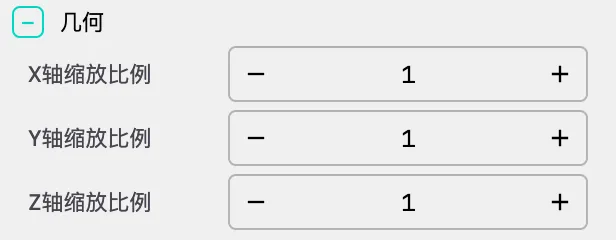
The Geometry panel for the Perlin Noise scene contains only spatial scaling controls:
- Scale X: Scaling ratio in the X-axis direction, 3 decimal precision
- Scale Y: Scaling ratio in the Y-axis direction, 3 decimal precision
- Scale Z: Scaling ratio in the Z-axis direction, 3 decimal precision
Tip: Perlin Noise is always rendered in 2D; Z-axis scaling typically does not need adjustment. Adjusting Scale X/Y can stretch or compress the flow field pattern.
2. Settings
The Settings panel is the core control area for the Perlin Noise scene. Parameters vary depending on the rendering mode (CPU/GPU).
Render Backend
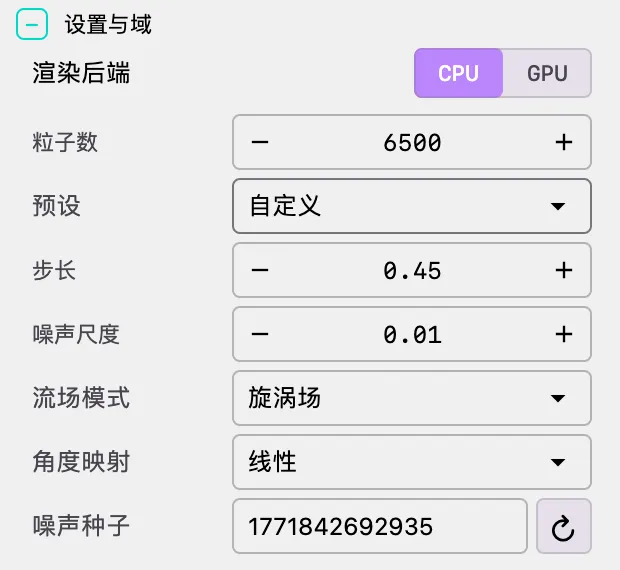
Select the rendering mode: CPU or GPU. The parameter configurations for the two modes are completely different; the panel updates automatically when switching.
Random Parameters
The Settings panel provides a compact set of exploration controls for generating new usable parameter combinations within the current mode:
- Random: Fine-tunes parameters inside the current style family, prioritizing live-updating continuous parameters. Best for quick iteration.
- Deep Random: Allows switching the primary style family within the current mode, then performs constrained randomization inside that family. Best for discovering larger stylistic jumps.
- Random Intensity: A dropdown with three levels:
- Conservative: Small perturbations that preserve the current structural feel
- Balanced: Medium perturbations suitable for day-to-day exploration
- Aggressive: Larger perturbations for broader exploration and surprise results
Important: The randomization system only works inside the current mode. In CPU mode it only changes CPU parameters; in GPU mode it only changes GPU parameters. It does not automatically switch between CPU and GPU.
Randomization Is Not Blind
The system does not apply independent uniform randomness to every parameter. Instead, it treats parameters in layers such as primary family, structure, dynamics, and presentation, then applies constraints to avoid obviously ugly combinations or unstable outcomes. For example:
- In CPU mode, higher
Noise Scaleautomatically suppresses the upper range ofNoise Step Sizeto avoid overly broken trajectories - In GPU mode, higher
Warp AmplitudelowersStep Sizeaccordingly to avoid overly jumpy texture sampling - Only
Deep Randomadjusts low-frequency family-defining parameters such as CPUFlow Modeor GPURender Style
Which CPU Parameters Are Randomized?
- Random: Primarily adjusts
Noise Scale,Noise Step Size,Flow Animation, andRespawn Rate - Deep Random: On top of that, may also adjust
Flow Mode,Angle Map, andNoise Seed
This makes it easy to switch between "micro-tuning within the same flow family" and "family switching while staying in CPU mode."
Which GPU Parameters Are Randomized?
- Random: Primarily adjusts
Noise Frequency,Warp Amplitude,Warp Frequency,Direction Offset,Time Speed,Step Size,Brightness,Vignette Power, andFiber Strength - Deep Random: On top of that, may also adjust
Render Style,Texture Style, and at higher intensity occasionallyMarch Steps
This keeps GPU exploration useful for both "same-family refinement" and controlled jumps into new texture/render families.
CPU Mode Parameters
Particles
Particle Count: Total number of particles in the system. More particles produce denser flow fields but increase CPU load.
- Recommended range: 5,000 - 20,000
- Above 20,000 may cause interface lag
Preset: Quickly apply parameter combinations for common effects:
- Soft Flow: 8,000 particles, step size 0.40, noise scale 0.008, angle field + soft power mapping, flow animation 0.20, trail lifetime 120s, fade enabled
- Vector Drift: 9,000 particles, step size 0.35, noise scale 0.012, vector field + linear mapping, flow animation 0.12, trail lifetime 90s, fade enabled
- Swirl Vortex: 6,500 particles, step size 0.45, noise scale 0.010, swirl field + linear mapping, flow animation 0.18, trail lifetime 110s, fade enabled
After selecting a preset, the system automatically sets particle count, step size, noise scale, flow mode, angle mapping, time scale, trail lifetime, and fade toggle. If you manually modify any parameter, the preset automatically displays as "Custom."
Noise & Flow
Noise Step Size: The spatial distance a particle moves per frame.
- Larger values (e.g., 0.3-0.5): Produce fast, jumpy movement
- Smaller values (e.g., 0.1-0.2): Produce slow, smooth flowing
Noise Scale: The spatial frequency (scaling ratio) of the noise field.
- Smaller values (e.g., 0.005-0.01): Produce large, smooth curves with strong macroscopic flow
- Larger values (e.g., 0.02-0.05): Produce fine, chaotic textures with rich detail
Flow Mode: Defines how noise controls particle movement:
- ANGLE_FIELD: The noise value directly determines the movement angle (0° to 360°). This is the most classic Perlin noise flow field, producing smooth, natural flow effects
- VECTOR_FIELD: Computes the gradient of the noise field, causing particles to move along contour lines. Produces more complex, non-uniform trajectories where particles tend to flow along "rivers" or "channels"
- SWIRL_FIELD: Superimposes a rotational force around the center on top of the noise. Produces galaxy-like, vortex, or tornado structures
Angle Map: How noise values are converted to angles:
- LINEAR: Direct 1:1 mapping. Smooth and standard, suitable for most scenarios
- SOFT_POWER: Applies a nonlinear transformation to the distribution curve (), causing particles to tend along specific "channels" or "rivers," producing more directional flow fields
Animation
- Noise Seed: Random seed value. Changing the seed produces a completely different noise field variant. Click the refresh button on the right to randomly generate a new seed.
GPU Mode Parameters
Render Style
- Filament: Fine filament-like textures, suitable for silk and fabric effects
- Water: Flowing water wave textures, suitable for liquid and ocean effects
Marching Parameters
March Steps: Number of ray marching iterations.
- Larger values (e.g., 32-64): Produce more precise, finer textures but increase GPU load
- Smaller values (e.g., 8-16): Render faster but textures may lack detail
- Recommended range: 16 - 64
Step Size: Distance of each marching step.
- Smaller values: Produce finer detail but require more steps
- Minimum: 0.0001
Noise Parameters
Noise Frequency: Spatial frequency of the noise field. Larger values produce denser textures. Minimum: 0.01.
Warp Amplitude: Strength of noise warping. Used to produce organic, flowing deformation effects. Minimum: 0.
Warp Frequency: Spatial frequency of warping. Minimum: 0.
Direction Offset: Offset angle of the flow direction. Used to adjust the overall flow direction.
Time & Brightness
Time Speed: Speed at which the noise field changes over time. Controls the flow feel of the animation.
Brightness: Overall brightness coefficient. Adjusts the brightness of the image. Minimum: 0.
Vignette Power: Strength of the vignette at the edges of the image. Used to focus the visual center. Minimum: 0.001.
Texture Style
The system provides 6 built-in texture styles, each generated through different noise layering and transformation algorithms:
| Style | Name | Description |
|---|---|---|
| 0 | Fiber | Fine filament-like texture, multi-layer noise superposition producing thread effects |
| 1 | Streak | Horizontal streak texture, emphasizing directionality |
| 2 | Silk | Smooth silk texture with soft luster |
| 3 | Water | Ripple-like water wave texture, expanding from center outward |
| 4 | Flame | Rising flame texture with turbulent disturbance |
| 5 | Mist | Soft mist texture, multi-layer noise blending |
- Fiber Strength: Prominence of the fiber texture. Range: 0.0 - 1.0.
3. Appearance
Background Color
- Background Color: Set the rendering background color. Perlin Noise typically uses black or dark backgrounds to highlight flow field details.
Points & Trails
Note: The following parameters are only available in CPU mode. GPU mode uses shader rendering and does not involve particle concepts.
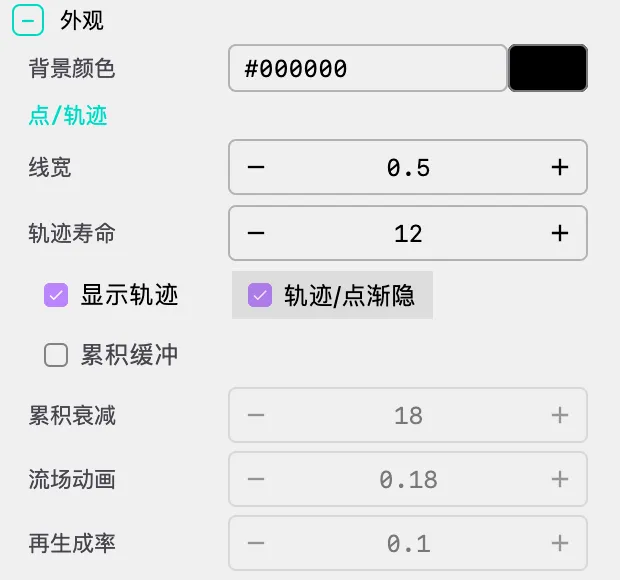
Line Weight: Thickness of trail lines.
Trail Lifetime: Duration for which trails are retained (seconds).
- Warning: Values greater than 15 seconds consume significant memory and may cause performance degradation
Show Trails: Toggle trail rendering on/off.
Fade Trails: When enabled, trails gradually become transparent at the tail, producing a more natural visual effect.
Accumulation Buffer
Note: Accumulation buffer is only available in CPU mode.
The accumulation buffer is an alternative rendering technique. Instead of saving trail geometry, particles are drawn onto a persistent texture that slowly fades. Suitable for creating silky, fluid-like effects.
Use Accumulation Buffer: When enabled, particles are drawn onto the accumulation texture instead of using traditional trails. Enabling this automatically turns on Show Trails.
Accumulation Fade: Controls the speed at which old frames fade out (0-255). Lower values produce longer trails; higher values produce shorter trails.
When the accumulation buffer is enabled, the following parameters become active:
Flow Animation: Speed at which the noise field itself deforms over time. Set to 0 for a static vector field. This is the key parameter for creating dynamic flow field effects — when the value is greater than 0, the noise field continuously deforms, producing flowing, surging effects.
Respawn Rate: Probability of a particle resetting to a random position.
- Importance: Crucial for preventing particles from getting stuck in "sinks" or infinite loops
- Recommended value: 0.01 - 0.1
- Too low a value causes particles to gradually accumulate in certain areas
- Too high a value makes the flow field appear choppy
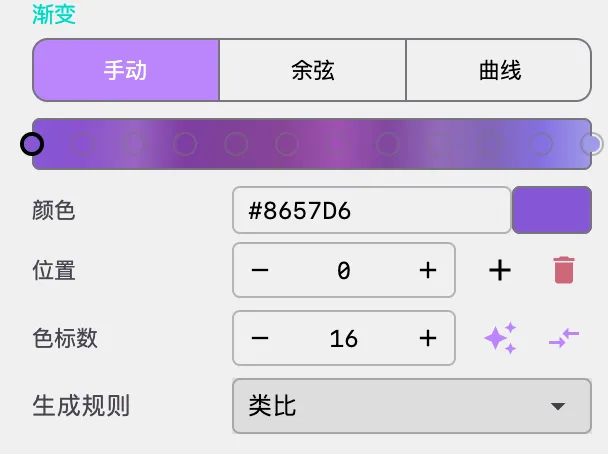
Gradient Palette
Perlin Noise uses a palette to color particles, with colors typically assigned based on particle index, creating rainbow-like gradients. Three gradient modes are supported:
Manual Mode:
- Manually add, remove, and adjust color nodes
- Support drag-and-drop reordering of colors
- Choose from random strategies (monochromatic, analogous, complementary, split-complementary)
Cosine Mode:
- Uses the IQ cosine palette formula: color(t) = a + b · cos(2π(c·t + d))
- Independently control offset, amplitude, frequency, and phase for R/G/B channels
- Support one-click randomization and application
Curve Mode:
- Control R/G/B channels independently through editable Bézier curves
- Provides the most flexible color control
- Support one-click randomization and application
4. Camera
Although Perlin Noise is typically 2D, it exists in 3D space. Camera parameters are used to set the initial viewing angle.
Camera Angles
Phi (Elevation): Vertical angle of the camera
- Range: 0 to π (0 to 180 degrees)
- Default: π/2 (90 degrees, horizontal view)
Theta (Azimuth): Horizontal angle of the camera
- Range: 0 to 2π (0 to 360 degrees)
- Default: 0
Gamma (Roll): Rotation angle of the camera
- Range: 0 to 2π (0 to 360 degrees)
- Default: 0
Tips
- Perlin Noise is always 2D: Typically use top-down view (Phi = 0 or π) or horizontal view (Phi = π/2)
- Rotational viewing: Adjusting Theta rotates the viewing angle
🎬 Animation and Timeline
Flow Animation
Control the speed at which the noise field changes over time using the time_scale parameter. When the value is greater than 0, the noise field continuously deforms, producing flowing, surging effects.
Note: Flow animation is only available in CPU mode with the accumulation buffer enabled.
Gradient Animation
Supports dynamic palette changes, including:
- HUE_ROTATE: Colors rotate along the hue wheel
- OFFSET_CYCLE: Color gradient shifts cyclically along particle indices
- CROSS_FADE: Smooth transition between two palettes
Gradient animation supports multiple color interpolation modes: RGB, Linear RGB, OKLab, OKLCH.
Gradient animation can be configured through the Timeline, supporting custom easing functions and durations.
Camera Animation
Supports smooth camera movement and rotation, including:
- rotateTheta: Rotate azimuth angle
- rotatePhi: Rotate elevation angle
- zoom: Zoom the view
- rotateTo: Rotate to a specified angle
Configuration Method
Define animation sequences through the timeline array in the JSON configuration file:
{
  "timeline": [
    {
      "type": "animate",
      "duration": 15.0,
      "easing": "SINE_IN_OUT",
      "actions": [
        {"method": "rotateTheta", "args": [6.283]}
      ]
    },
    {
      "type": "animate",
      "duration": 10.0,
      "easing": "SINE_IN_OUT",
      "actions": [
        {"method": "gradientStart", "args": [{"mode": "HUE_ROTATE", "speed": 0.5}]}
      ]
    },
    {
      "type": "hold",
      "duration": 2.0
    }
  ]
}
Performance and Best Practices
Recommended Configurations
| Goal | Render Mode | Particles | Step Size | Noise Scale | Flow Mode | Accumulation Buffer |
|---|---|---|---|---|---|---|
| Silky Fluid | CPU | 10,000-15,000 | 0.35-0.45 | 0.008-0.012 | ANGLE_FIELD | On |
| Galaxy Vortex | CPU | 6,000-8,000 | 0.40-0.50 | 0.008-0.012 | SWIRL_FIELD | On |
| Geometric Texture | CPU | 8,000-12,000 | 0.10-0.20 | 0.020-0.040 | ANGLE_FIELD | Off |
| High-Quality Video | GPU | - | - | - | - | - |
GPU Mode Recommended Configurations
| Goal | March Steps | Step Size | Noise Frequency | Texture Style |
|---|---|---|---|---|
| Silk Effect | 32-48 | 0.006-0.010 | 1.0-2.0 | Silk |
| Water Effect | 32-48 | 0.006-0.010 | 1.5-2.5 | Water |
| Flame Effect | 24-40 | 0.008-0.012 | 1.0-2.0 | Flame |
Performance Optimization Tips
CPU Mode Particle Count Adjustment:
- Reducing particle count is the most direct performance optimization
- Above 15,000 particles will cause noticeable lag on most devices
Trail Lifetime:
- Trail lifetimes exceeding 15 seconds consume significant memory
- Using the accumulation buffer instead of long trails provides better performance
GPU Mode Marching Optimization:
- March Steps is the parameter that most affects GPU mode performance
- For real-time interaction, set to 16-24; increase to 32-48 for export
Accumulation Buffer Fade Value:
- Lower Accumulation Fade values (e.g., 5-15) produce longer trails but are visually smoother
- Higher values (e.g., 50-100) produce shorter trails, suitable for rapidly changing flow fields
Random Parameter Workflow Tips
Start with Balanced:
- For most creative workflows, begin with
Random + Balanced - It gives noticeable variation without drifting too far from the current feel
- For most creative workflows, begin with
Preserve the current mood:
- Use
Random + Conservative - This is ideal when the image is already close and you only want a few gentle iterations
- Use
Look for a new family:
- Use
Deep Random + BalancedorDeep Random + Aggressive - These combinations are better for jumping from silk-like motion to vortex-like motion, or from filament-like texture to water-like texture
- Use
Randomize first, refine second:
- The most effective workflow is usually not repeatedly hammering the random button
- A better approach is to find a promising structure first, then manually refine brightness, vignette, palette, and trail presentation
Frequently Asked Questions
Particles Stuck in Circles
Problem: Particles seem to be caught in loops, repeatedly circling in the same position.
Cause: Particles are trapped in "sinks" or infinite loops in the noise field.
Solutions:
- Increase
Respawn Rateto 0.02 - 0.1 - Change
Flow Modeto VECTOR_FIELD - Adjust
Noise Scaleto change the flow field structure
Interface Lag
Problem: The interface responds slowly.
Cause: Too many particles or trail lifetime is too long.
Solutions:
- Reduce
Particle Countbelow 20,000 - Reduce
Trail Lifetimeto under 10 seconds - Disable the accumulation buffer and use standard trail mode
No Trails Visible
Problem: Particles are moving but no trails are visible.
Cause: Trail rendering is not configured correctly.
Solutions:
- Ensure
Show Trailsis enabled - If the accumulation buffer is enabled, check that
Accumulation Fadeis not too high - Check that
Trail Lifetimeis not 0
Parameters Unavailable in GPU Mode
Problem: Some parameters appear grayed out/unavailable in GPU mode.
Cause: GPU mode uses shader rendering; some CPU mode parameters do not apply.
Solution: In GPU mode, use GPU-specific parameters (such as March Steps, Noise Frequency, Texture Style, etc.).
Randomization Changes Too Much or Too Little
Problem: After clicking randomize, the result changes much more than expected, or barely changes at all.
Solutions:
- If the change is too large, set
Random Intensityto Conservative - If the change is too small, switch the intensity to Balanced or Aggressive
- If you only want to explore near the current style, use Random
- If you want to jump to a new style family, use Deep Random
Poor Video Export Quality
Problem: Exported video appears blurry or textures lack detail.
Solutions:
- Use GPU mode for export
- Increase
March Stepsto 32 or above - Select appropriate
Texture StyleandRender Style - Ensure the export resolution is sufficiently high
Flow Field Looks Too Uniform
Problem: The flow field lacks variation; all particles seem to move in the same direction.
Cause: Noise scale is too large or angle mapping is too linear.
Solutions:
- Reduce
Noise Scale(e.g., from 0.02 to 0.008) - Switch
Angle Mapto SOFT_POWER - Try VECTOR_FIELD mode
📐 Classic Effect Examples
Soft Flow
Render Mode: CPU
Particle Count: 8000
Noise Step Size: 0.40
Noise Scale: 0.008
Flow Mode: ANGLE_FIELD
Angle Map: SOFT_POWER
Accumulation Buffer: On
Accumulation Fade: 15
Flow Animation: 0.20
Respawn Rate: 0.03
Galaxy Vortex
Render Mode: CPU
Particle Count: 6500
Noise Step Size: 0.45
Noise Scale: 0.010
Flow Mode: SWIRL_FIELD
Angle Map: LINEAR
Accumulation Buffer: On
Accumulation Fade: 12
Flow Animation: 0.18
Respawn Rate: 0.02
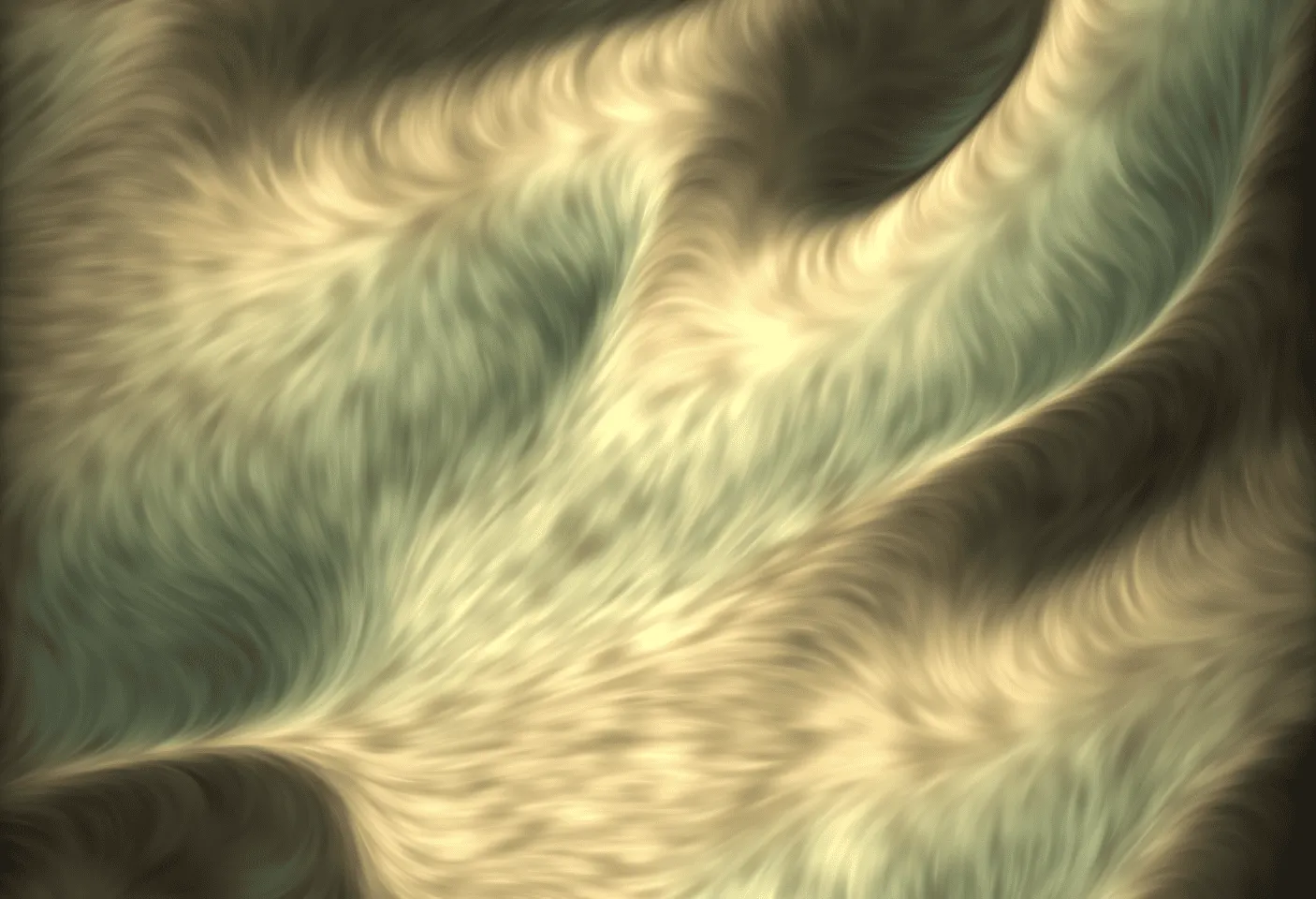
GPU Silk Texture
Render Mode: GPU
Render Style: Filament
March Steps: 40
Step Size: 0.008
Noise Frequency: 1.5
Warp Amplitude: 0.1
Warp Frequency: 2.0
Texture Style: Silk
Fiber Strength: 0.7
Brightness: 1.7
Vignette Power: 0.1
More Showcase
🔧 Technical Details
CPU Rendering Pipeline
CPU mode uses a traditional particle system for rendering. The core workflow is as follows:
- Particle Initialization: Particles are randomly distributed within the canvas bounds, each assigned a random initial direction
- Noise Sampling: Perlin noise values are sampled based on particle position and noise scale parameters
- Direction Calculation: Particle movement direction is calculated based on the flow mode (angle field / vector field / swirl field)
- Position Update: Particles move along the calculated direction, with step size determined by Noise Step Size and frame time
- Boundary Handling: Particles that exceed the canvas bounds automatically wrap to the opposite side
- Trail Rendering: Particle trajectories are recorded, with optional gradient transparency based on Fade Trails settings
Gradient Calculation in Vector Field Mode
Vector field mode computes the gradient of the noise field using finite differences:
Particles move along contour line directions (perpendicular to the gradient), with a smooth blending factor introduced to prevent abrupt direction changes.
GPU Rendering Pipeline
GPU mode uses OpenGL shaders for real-time rendering:
- Texture Generation: Pre-generates flow field textures for 6 texture styles based on the seed value (512x512 to 2048x2048)
- Palette Texture: Converts the current palette into a 256-pixel-wide 1D lookup table texture
- Ray Marching: The fragment shader samples noise textures in screen space using the Ray Marching algorithm
- Warping & Deformation: Applies Warp Amplitude and Warp Frequency parameters for domain warping
- Post-Processing: Applies brightness, vignette, and fiber strength post-processing effects
Texture Style Generation Algorithms
Each texture style uses a different noise layering strategy:
- Fiber: 4-layer noise superposition (low-frequency base + mid-frequency detail + fiber structure + grain), weights 0.42, 0.28, 0.22, 0.08 respectively
- Streak: 3-layer noise superposition (directional base + mid-frequency + streaks), streaks generated through nonlinear transformation
- Silk: 2-layer noise superposition, first layer with sine-modulated lateral flow, second layer producing luster variation
- Water: Radial sine rings + ripple noise, expanding from center outward
- Flame: 3-layer noise superposition (smoke column + turbulence + flame), flame layer generated through for rising effects
- Mist: 3-layer noise superposition (low-frequency + mid-frequency + high-frequency), weights 0.55, 0.30, 0.15 respectively
Creative Tips
Parameter Exploration
- Start from a Preset: Select an interesting preset (such as Soft Flow) as a starting point
- Adjust Noise Scale: This is the parameter with the most significant visual impact; try the range from 0.005 to 0.04
- Switch Flow Modes: The same noise scale produces drastically different effects in different flow modes
- Leverage Seed Variation: The same parameter set with different seeds can produce infinitely varied flow fields
Visual Tuning
Trail Effects:
- Use accumulation buffer + low fade values (5-15) for silky long trails
- Use traditional trails + Fade Trails for gradient transparency effects
Color Schemes:
- Use cosine palette mode to quickly generate harmonious color schemes
- Dark backgrounds with high-saturation colors typically produce the best results
- Try monochromatic or analogous strategies for unified visual styles
GPU Textures:
- Fiber style with Filament rendering suits fabric effects
- Water style with Water rendering suits liquid effects
- Adjust Fiber Strength to control texture coarseness
Animation Design
Flow Animation:
- Flow Animation values of 0.1-0.3 produce slow flow field deformation
- Pair with respawn rate of 0.02-0.05 to ensure particles don't accumulate
Gradient Animation:
- HUE_ROTATE mode is suitable for creating dreamy color changes
- OFFSET_CYCLE mode is suitable for creating pulse-like color flows
Camera Motion:
- Slow Theta rotation can reveal the directionality of the flow field
- Combine with flow animation for an immersive visual experience
📚 References
Mathematical Theory
- Ken Perlin - An Image Synthesizer (1985) - The original paper on Perlin noise
- Ken Perlin - Noise, a paper from Siggraph 2001 - The improved Simplex noise version
- Daniel Shiffman - The Nature of Code - Introductory tutorial on flow fields and particle systems
Online Resources
- The Story of Perlin Noise
- Flow Fields: A Practical Guide
- Ken Perlin's Homepage - Original creator of Perlin noise
Software Documentation
- OpenGL Shader Programming Guide
- GLSL Language Specification